KDP Manuscript File Formats: Which One Should You Use?
Not sure whether to upload DOCX, EPUB, KPF, or PDF to Amazon KDP? Learn which manuscript file formats work best for Kindle ebooks, paperbacks, and hardcovers.
Uploading a manuscript to Amazon KDP sounds simple until you reach the file-upload step.
Then the questions start.
Should you upload Word?
EPUB?
KPF?
PDF?
The right answer depends on what kind of book you are publishing.
A Kindle ebook behaves very differently from a paperback or hardcover.
That means the best file format for one may be the wrong choice for another.
For Christian authors publishing devotionals, Bible studies, memoirs, fiction, children’s books, and workbooks, choosing the right format early can prevent unnecessary formatting problems later.
Start With One Question: Ebook or Print?
Before choosing a manuscript file format, decide whether you are preparing:
- a Kindle ebook
- a paperback
- a hardcover
The file requirements are not identical.
Kindle ebooks need to adapt to different screens and devices.
Print books need fixed pages with exact margins, trim dimensions, and page placement.
That distinction drives nearly every formatting decision that follows.
Best File Formats for Kindle Ebooks
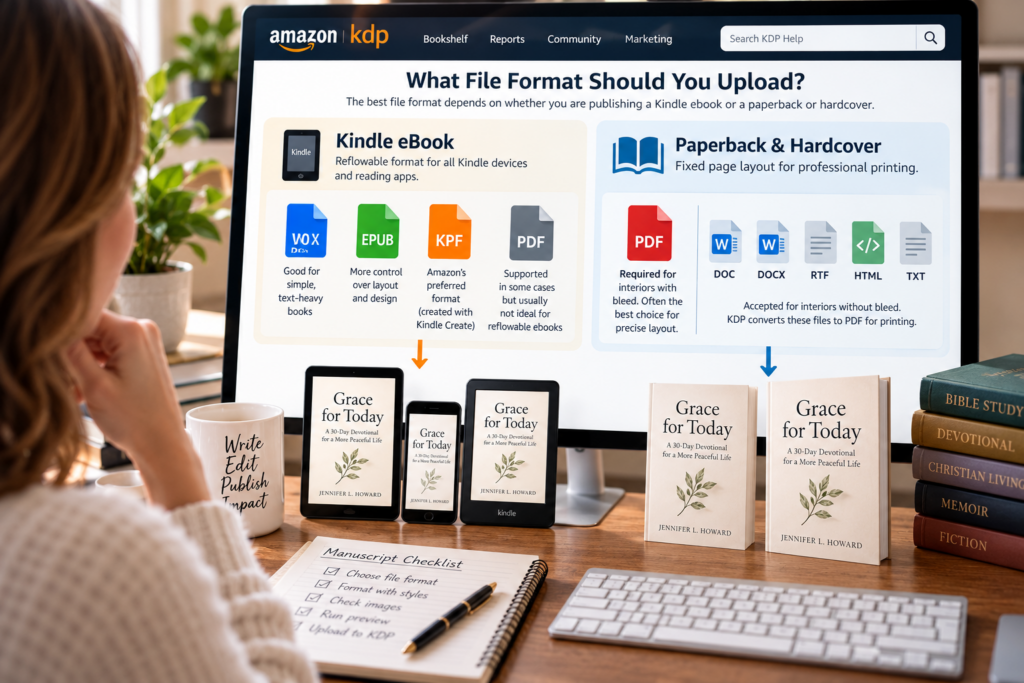
For most Kindle ebooks, three formats deserve the most attention:
- DOCX
- EPUB
- KPF
Each can work well.
The best choice depends on how complex the book is and how much control you want over the final formatting.
DOCX Works Well for Simple Text-Heavy Books
DOCX is a practical choice for straightforward books such as:
- novels
- memoirs
- devotionals
- Christian nonfiction
- simple Bible studies
- essays
If your manuscript is primarily text with standard chapter headings, paragraphs, and a few images, DOCX can work very well.
The key is to format it cleanly.
Use paragraph styles rather than manually adjusting every heading and paragraph.
Use proper page breaks.
Avoid building layout with:
- tabs
- repeated spaces
- multiple blank lines
- text boxes
- complex floating elements
A clean Word file is much easier for KDP to convert successfully.
KPF Is Strong for Authors Using Kindle Create
KPF stands for Kindle Package Format.
It is created through Kindle Create.
This can be a strong choice if you want Amazon’s own formatting tool to handle the ebook structure.
Kindle Create can help with:
- chapter styling
- table of contents
- themes
- images
- chapter-opening elements
- previewing the book across Kindle devices
KPF supports Kindle-specific formatting features more fully than EPUB in some cases.
For authors who prefer a guided publishing workflow, Kindle Create can reduce some of the uncertainty around ebook formatting.
EPUB Gives You More Control
EPUB is a widely used ebook format and works especially well when a formatter or publishing program creates the file.
It is useful for:
- professionally formatted ebooks
- books with more complex styling
- authors using Vellum
- authors using Scrivener
- authors using Reedsy
- authors using Sigil or similar tools
EPUB can preserve more intentional structure than a basic Word upload.
It is also a common choice when a professional formatter prepares the ebook.
Before uploading an EPUB, validate and preview it carefully.
The point is not simply to produce an EPUB file.
The point is to produce one that behaves properly on Kindle devices and apps.
What About PDF for Kindle Ebooks?
PDF is technically supported for Kindle ebooks in certain languages.
But that does not mean it is usually the best choice for a normal reflowable ebook.
PDF is designed around fixed pages.
Kindle ebooks are usually designed to reflow so readers can:
- change font size
- change line spacing
- switch devices
- read comfortably on phones
- use accessibility features
A fixed PDF may not adapt as naturally.
For a standard novel, devotional, or nonfiction book, DOCX, EPUB, or KPF is usually a more appropriate starting point.
PDF becomes more relevant when the book depends on a fixed visual layout.
Print Books Follow Different Rules
Paperback and hardcover files need to preserve exact page layout.
That means print interiors are handled differently from Kindle ebooks.
For a print book, your concerns include:
- trim size
- margins
- gutter
- bleed
- page count
- image placement
- headers and footers
- page numbers
The format needs to preserve the page exactly as intended.
Use PDF for Print Books With Bleed
If any interior image, color block, background, or graphic extends all the way to the edge of the printed page, the book uses bleed.
For those books, KDP requires the interior manuscript to be uploaded as a PDF.
This commonly affects:
- children’s books
- illustrated workbooks
- activity books
- full-page photographs
- some cookbooks
- art books
- image-heavy devotional books
A PDF locks the page layout in place.
That is exactly what you want for a bleed-based print interior.
Print Books Without Bleed Have More Options
If your paperback or hardcover has no interior bleed, KDP accepts several formats, including:
- DOC
- DOCX
- RTF
- HTML
- TXT
KDP converts non-PDF print files to PDF before printing.
Even so, many authors prefer uploading a finished PDF because it gives them more control over the exact printed layout.
That can be especially helpful for:
- carefully designed nonfiction
- Bible studies
- workbooks
- devotionals
- books with page headers and footers
- books with complex tables or graphics
If your print book is visually simple, DOCX may still work.
If precise layout matters, PDF is usually easier to verify.
Do Not Use the Same File Blindly for Ebook and Print
This is one of the most common mistakes.
A paperback manuscript is designed around fixed pages.
A Kindle ebook is designed around flexible screens.
Those are different experiences.
If you take a print-formatted Word file and upload it directly as an ebook without reviewing it, you may end up with:
- awkward spacing
- strange page breaks
- blank pages
- broken navigation
- bad image placement
- oversized chapter spacing
Likewise, an ebook-formatted manuscript may not be suitable for print without adding proper margins, page numbers, headers, and trim-specific layout.
Treat ebook and print formatting as related but separate production tasks.
Use Styles Instead of Manual Formatting
Whether you are preparing Word for ebook conversion or print, styles make the manuscript much more stable.
For example:
Use a heading style for chapter titles.
Use a normal body style for paragraphs.
Use dedicated paragraph settings for first-line indents.
Use proper spacing controls rather than pressing Enter repeatedly.
Avoid creating indents with spaces or tabs.
Avoid forcing page positions with blank paragraphs.
Those manual tricks often create problems when the file is converted.
Good structure is more reliable than visual improvisation.
Use Real Page Breaks
Do not start a new chapter by pressing Enter repeatedly.
Use an actual page break.
For ebooks, that helps KDP understand where chapters begin.
For print books, it keeps chapter starts more predictable.
Multiple blank lines are fragile.
A real page break is intentional.
Images Need Special Attention
Images can create problems in both ebook and print files.
For ebooks, consider:
- file size
- clarity
- placement
- mobile display
- scaling
For print, consider:
- resolution
- bleed
- trim
- color reproduction
- margin placement
Do not insert enormous image files simply because they look sharp on your monitor.
Use appropriately sized, high-quality images for the final format.
For print, make sure the images are suitable for physical reproduction.
For ebooks, make sure they remain readable on smaller screens.
Large Ebook Files Can Affect Royalties
File size matters more for Kindle ebooks than many authors realize.
Under KDP’s 70% royalty option, delivery costs are deducted based on the ebook’s file size in applicable marketplaces.
That means an image-heavy ebook can produce higher delivery costs than a simple text-based book.
This does not mean you should destroy image quality to save pennies.
It means you should avoid unnecessarily oversized files.
Optimize images appropriately.
Use the quality the reader needs, not far more than the device can display.
Preview Every Ebook Before Publishing
Do not assume the file works because the upload succeeded.
Preview it.
For ebooks, check the book across:
- phone-sized display
- tablet
- Kindle e-reader
Look at:
- chapter starts
- paragraph spacing
- table of contents
- images
- hyperlinks
- front matter
- headings
- page-break behavior
Kindle Previewer is especially useful because it lets you see how the ebook behaves across different reading environments.
The goal is not to inspect one perfect-looking page.
The goal is to make sure the entire ebook behaves correctly.
Preview Every Print Book Too
For paperback and hardcover, use KDP’s print preview tools before approval.
Check:
- margins
- gutter
- page numbers
- blank pages
- cover alignment
- bleed
- trim
- spine
- text placement
Then order a physical proof.
A digital preview can tell you whether the file is structurally acceptable.
A printed proof tells you whether the actual book feels right in your hands.
Kindle Create Can Simplify the Process
Authors who do not want to manage EPUB production manually may find Kindle Create useful.
It can import Word files and help turn them into a Kindle-ready ebook.
It also lets you export a KPF file for KDP.
For many first-time authors, this is easier than learning ebook code or EPUB structure.
But Kindle Create is not necessary for every project.
If your EPUB is already professionally formatted, you may not need it.
If your DOCX is simple and converts cleanly, that may be enough.
Choose the workflow that matches your book.
Mac Users Do Not Need a Special KDP Workflow
Books created on a Mac can be published through KDP just like books created on Windows.
The important factor is the exported file format.
If you write in Apple Pages, export the manuscript to a supported format before uploading.
For a Kindle ebook, that may mean DOCX or EPUB.
For a print book, PDF may be appropriate depending on the layout.
The operating system does not determine whether the book is acceptable.
The file does.
Keep Your Source Files
Every time you upload a revised manuscript, save your working files separately.
Do not rely on KDP as your archive.
Keep:
- original manuscript
- edited manuscript
- final DOCX
- final EPUB or KPF
- print PDF
- cover source files
- final cover PDF
- revision history
If a future update introduces a problem, you want a clean previous version available.
Version control becomes increasingly important as your catalog grows.
Do Not Overcomplicate a Simple Book
A straightforward devotional does not need an elaborate technical production system.
A simple Christian nonfiction book may not need a custom-coded EPUB.
A novel usually does not need fixed-layout formatting.
Match the file format to the book.
Use complexity only when the content requires it.
That reduces both technical problems and production time.
When to Consider Professional Formatting
Professional formatting may be worth the cost when the book includes:
- complex tables
- many illustrations
- image-heavy layouts
- children’s pages
- poetry with unusual spacing
- extensive footnotes
- complex Bible-study layouts
- highly designed devotionals
- specialty print layouts
A formatter can help produce clean EPUB and print-ready PDF files.
For a simple text-based book, you may be able to handle the process yourself.
Frequently Asked Questions
What is the best file format for a Kindle ebook?
For most authors, DOCX, EPUB, or KPF are the strongest practical choices. DOCX works well for simple books, EPUB offers more formatting control, and KPF works well for books prepared with Kindle Create.
What is the best format for a KDP paperback?
For precise print layout, PDF is often the safest choice. If the interior uses bleed, PDF is required. Non-bleed interiors can also be uploaded in several other supported formats.
Can I upload a Word document directly to KDP?
Yes. DOC and DOCX are supported for Kindle ebooks and can also be used for non-bleed print books.
Can I upload a PDF as a Kindle ebook?
KDP supports PDF for Kindle ebooks in certain languages, but PDF is often not the best choice for a standard reflowable ebook.
Should I use EPUB or KPF?
EPUB is an excellent choice for professionally formatted ebooks and files created by third-party publishing tools. KPF is a strong option if you use Kindle Create and want access to Kindle-specific formatting features.
Do large ebook files reduce royalties?
Under the 70% royalty option, delivery costs may be deducted based on ebook file size in applicable marketplaces. Image-heavy books can therefore cost more to deliver than simple text ebooks.
Can I use the same interior file for paperback and hardcover?
Often, yes, if both use the same trim size and interior specifications. Their cover files are different, however, because paperback and hardcover covers use different dimensions.
Should I use the same manuscript for ebook and print?
Not without reviewing and adapting it. Ebook files are designed to reflow across devices, while print interiors are designed around fixed pages.
Match the File to the Book
There is no single KDP manuscript format that is best for every project.
For a simple Kindle ebook, DOCX may be enough.
For more control, EPUB works well.
For a Kindle Create workflow, KPF is a strong option.
For print books, especially those using bleed or complex layout, PDF is often the right choice.
The important thing is not choosing the most technical format.
It is choosing the format that preserves the reading experience you intended.
Prepare the file correctly.
Preview it carefully.
Proof the print edition physically.
Then publish knowing the format supports the book instead of fighting it.